Advanced
The following guides cover advanced features and customization options available in the Actito SDK.
These topics are optional and can be adopted selectively based on your application’s requirements. You can safely skip any sections that are not relevant to your use case or implementation strategy.
Receiving Push Events
When using the Remote Notifications module, you can listen to a series of push events emitted by the SDK during notification delivery and interaction lifecycle.
These events allow you to extend the default behavior — for example, tracking delivery analytics, responding to user interactions, or handling custom payloads.
To do this, make your AppDelegate (or a dedicated handler) conform to the ActitoPushDelegate protocol.
class AppDelegate: NSObject, UIApplicationDelegate {
    internal func application(_: UIApplication, didFinishLaunchingWithOptions _: [UIApplication.LaunchOptionsKey: Any]?) -> Bool {
        // more code ...

        Actito.shared.push().delegate = self
    }
}

extension AppDelegate: ActitoPushDelegate {
    func actito(_: ActitoPush, didFailToRegisterForRemoteNotificationsWithError error: Error) { }

    func actito(_: ActitoPush, didChangeSubscription subscription: ActitoPushSubscription?) { }

    func actito(_: ActitoPush, didChangeNotificationSettings allowedUI: Bool) { }

    func actito(_: ActitoPush, didReceiveUnknownNotification userInfo: [AnyHashable: Any]) { }

    func actito(_: ActitoPush, didReceiveNotification notification: ActitoNotification, deliveryMechanism: ActitoNotificationDeliveryMechanism) { }

    func actito(_: ActitoPush, didReceiveSystemNotification notification: ActitoSystemNotification) { }

    func actito(_: ActitoPush, shouldOpenSettings notification: ActitoNotification?) { }

    func actito(_: ActitoPush, didOpenNotification notification: ActitoNotification) { }

    func actito(_: ActitoPush, didOpenUnknownNotification userInfo: [AnyHashable: Any]) { }

    func actito(_: ActitoPush, didOpenAction action: ActitoNotification.Action, for notification: ActitoNotification) { }

    func actito(_: ActitoPush, didOpenUnknownAction action: String, for notification: [AnyHashable: Any], responseText: String?) { }
}
Push events
didFailToRegisterForRemoteNotificationsWithError: Called when the app encounters an error during the registration process for remote notifications.
func actito(_: ActitoPush, didFailToRegisterForRemoteNotificationsWithError error: Error) {
    print("Failed to register for remote notifications: \(error.localizedDescription)")
}
didChangeSubscription: Called when the device's push subscription changes.
func actito(_: ActitoPush, didChangeSubscription subscription: ActitoPushSubscription?) {
    print("New subscription token: \(subscription.token)")
}
didChangeNotificationSettings: Called when the notification settings are changed.
func actito(_: ActitoPush, didChangeNotificationSettings allowedUI: Bool) {
    print("Notification settings changed. Allow: \(allowedUI)")
}
didReceiveUnknownNotification: Called when an unknown type of notification is received.
func actito(_: ActitoPush, didReceiveUnknownNotification userInfo: [AnyHashable: Any]) {
    print("Received an unknown notification: \(userInfo)")
}
didReceiveNotification: Called when a push notification is received.
func actito(_: ActitoPush, didReceiveNotification notification: ActitoNotification, deliveryMechanism: ActitoNotificationDeliveryMechanism) {
    print("Received a notification: \(notification.id) via \(deliveryMechanism)")
}
didReceiveSystemNotification: Called when a custom system notification is received.
func actito(_: ActitoPush, didReceiveSystemNotification notification: ActitoSystemNotification) {
    print("Received a system notification: \(notification.id)")
}
shouldOpenSettings: Called when a notification prompts the app to open its settings screen.
func actito(_: ActitoPush, shouldOpenSettings notification: ActitoNotification?) {
    print("Should open notification settings")
}
didOpenNotification: Called when a push notification is opened by the user.
func actito(_: ActitoPush, didOpenNotification notification: ActitoNotification) {
    print("Opened notification: \(notification.id)")
}
didOpenUnknownNotification: Called when an unknown push notification is opened by the user.
func actito(_ actitoPush: ActitoPush, didOpenUnknownNotification userInfo: [AnyHashable: Any]) {
    print("Opened unknown notification: \(userInfo)")
}
didOpenAction: Called when a push notification action is opened by the user.
func actito(_ actitoPush: ActitoPush, didOpenAction action: ActitoNotification.Action, for notification: ActitoNotification) {
    print("Opened action: \(action.label)")
}
didOpenUnknownAction: Called when an unknown push notification action is opened by the user.
func actito(_ actitoPush: ActitoPush, didOpenUnknownAction action: String, for notification: [AnyHashable: Any], responseText: String?) {
    print("Opened unknown action: \(action)")
}
Notification Service Extension
Starting with iOS 10, Apple introduced the Notification Service Extension, which allows apps to process incoming push notifications before they are displayed to the user.
By implementing this extension, you can:
- Enrich notifications with rich media (images, videos, audio).
- Modify notification content dynamically before display.
- Perform custom client-side processing of push messages.
This guide walks you through creating and configuring a Notification Service Extension to enhance your notification experience.
Adding a Notification Service Extension
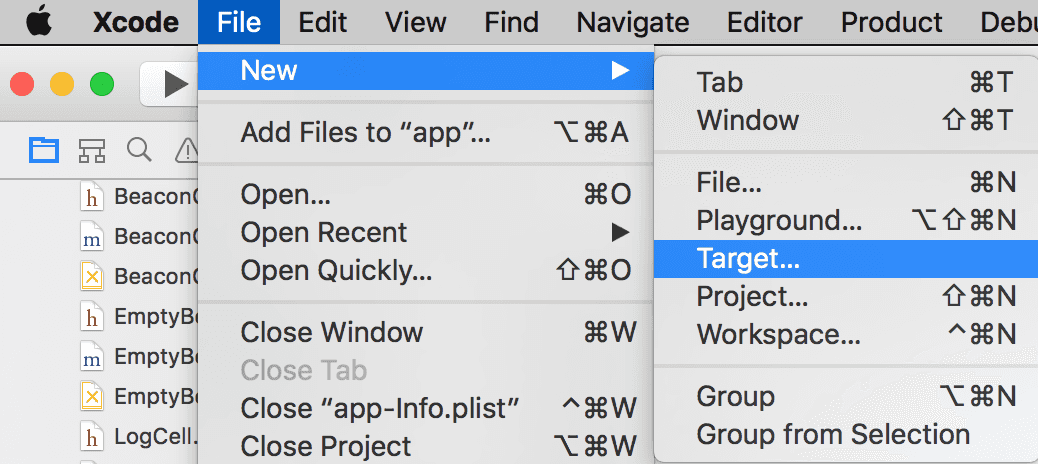
To add the Notification Service Extension to your project, add a new target:
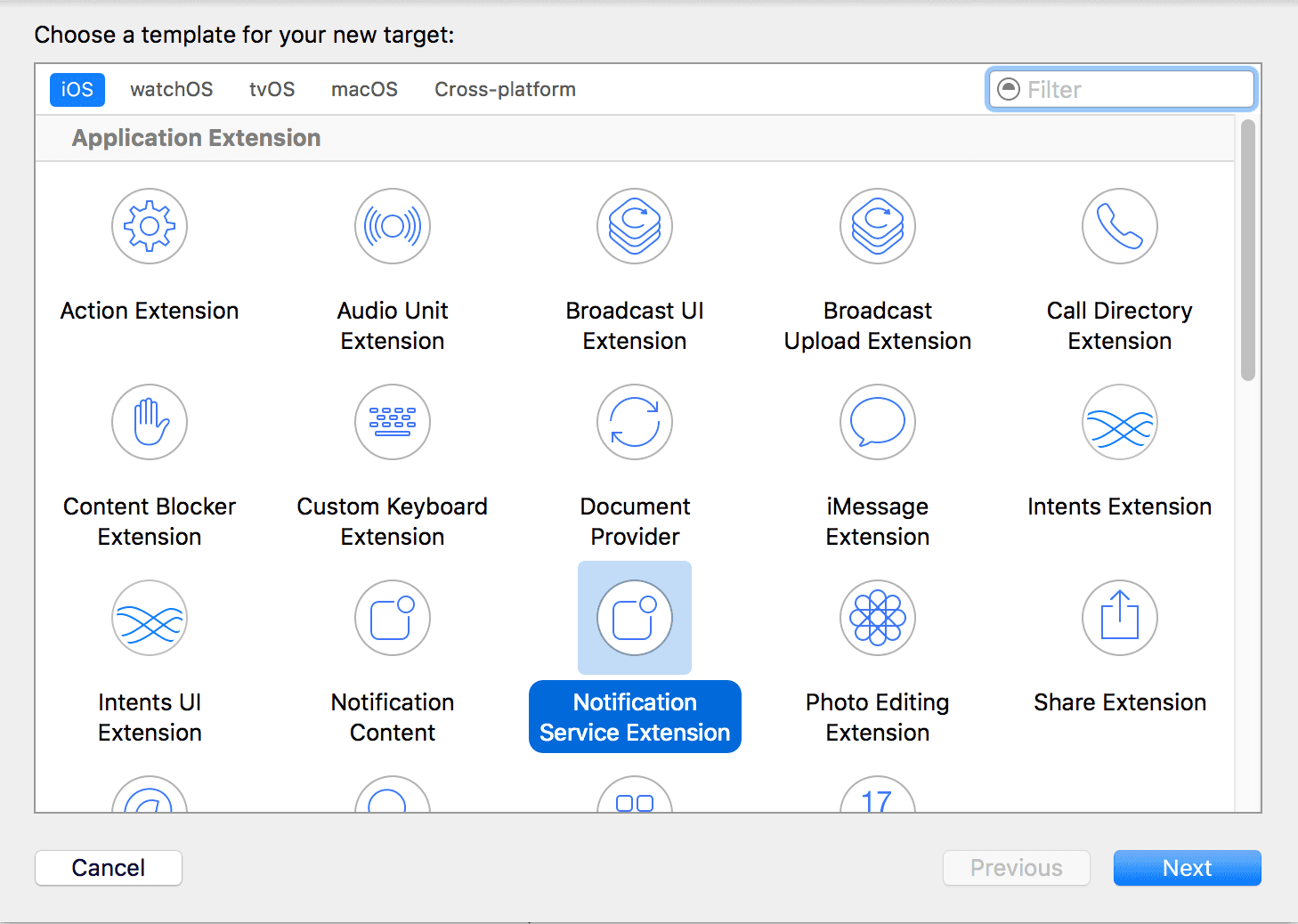
In the template selector, choose Notification Service Extension and click Next.
Provide a Product Name for the extension (e.g., NotificationServiceExtension) and click Finish.
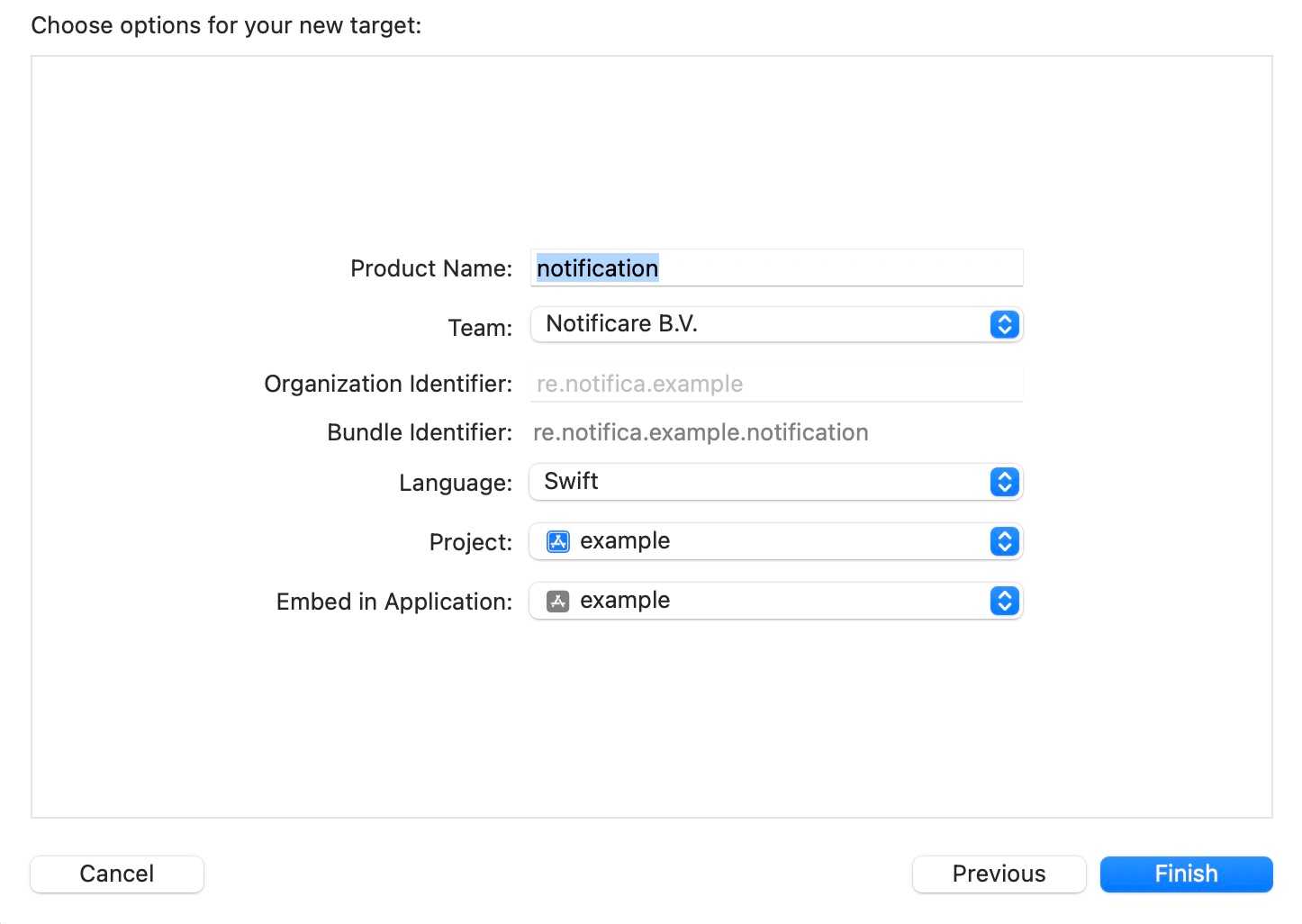
This is going to add a new folder to your project with the new extension files.
Using Swift Package Manager, add the ActitoNotificationServiceExtensionKit dependency to both your main app target and the new notification service extension target, then proceed with its implementation.
Implementing the extension
In the newly created implementation file, add the following code to the didReceive method to enable handling of rich notifications:
import ActitoNotificationServiceExtensionKit

override func didReceive(_ request: UNNotificationRequest, withContentHandler contentHandler: @escaping (UNNotificationContent) -> Void) {
    ActitoNotificationServiceExtension.handleNotificationRequest(request) { result in
        switch result {
        case let .success(content):
            contentHandler(content)

        case let .failure(error):
            print("Failed to handle the notification request.\n\(error)")
            contentHandler(request.content)
        }
    }
}
Once your implementation is complete, you can include media attachments in your notifications by:
- Uploading an image in the Lock Screen Media field when composing a message in the dashboard.
- Including the attachments property in your notification payload when sending via the REST API.
To ensure reliable delivery, keep media files below 300 KB. iOS allows limited time for the extension to download attachments, and larger files may not complete in time on slow networks.
Configuring App Transport Security (optional)
Since the Notification Service Extension runs as a separate target, it maintains its own Info.plist configuration.
By default, iOS blocks non-secure (HTTP) network requests in extensions. If your lock screen media is hosted over an insecure protocol (http://), you must declare an App Transport Security exception in the extension’s Info.plist.

Live Activities
Live Activities let you display real-time, glanceable updates from your app directly on the Lock Screen and on the Dynamic island (on supported devices). They are ideal for showing ongoing events — such as order deliveries, ride progress, sports scores, or timers — without requiring users to open the app.
The Actito SDK provides a simple API to register, update, and manage your Live Activities, while seamlessly handling remote updates from your Actito campaigns or API integrations.
This guide explains how to register and manage Live Activities through the Actito SDK.
Registering an activity
To start receiving remote updates for a Live Activity, register it with Actito by calling registerLiveActivity().
An activityId uniquely identifies the ongoing activity, while the optional topics parameter can be used for grouping or targeting activities.
do {
    try await Actito.shared.push().registerLiveActivity(
        "order-tracker",
        token: "",
        topics: ["sample"]
    )
} catch {
    // Handle error
}
Ending an activity
When the Live Activity completes — either because the process ends or the user dismisses it — your app must explicitly notify Actito by calling endLiveActivity().
This ensures that Actito stops sending updates to the ended activity and accurately tracks lifecycle metrics.
do {
    try await Actito.shared.push().endLiveActivity("order-tracker")
} catch {
    // Handle error
}
You can monitor lifecycle changes using Apple’s activityUpdates to automatically end or update the activity when necessary.
Listening to token changes
Each Live Activity is associated with a push token used to deliver updates securely and directly from Actito’s servers. If this token changes — for example, after a system restart or re-registration — your app must update Actito to continue receiving updates.
Use Apple’s pushTokenUpdates to listen for token changes and re-register the activity when needed.
Notification lifecycle
When using the Push UI module to present notifications and actions, you can listen to a series of lifecycle events emitted during the notification presentation process. In more advanced implementations, these events can be leveraged to execute additional logic — such as tracking analytics, updating application state, or triggering custom navigation behaviors.
To do this, make your AppDelegate (or a dedicated handler) conform to the ActitoPushUIDelegate protocol. This delegate provides hooks for key points in the notification lifecycle — from presentation to action execution.
class AppDelegate: NSObject, UIApplicationDelegate {
    internal func application(_: UIApplication, didFinishLaunchingWithOptions _: [UIApplication.LaunchOptionsKey: Any]?) -> Bool {
        // more code ...

        Actito.shared.pushUI().delegate = self
    }
}

extension AppDelegate: ActitoPushUIDelegate {
    // MARK: - Notifications

    func actito(_ actito: ActitoPushUI, willPresentNotification notification: ActitoNotification) { }

    func actito(_ actito: ActitoPushUI, didPresentNotification notification: ActitoNotification) { }

    func actito(_ actito: ActitoPushUI, didFinishPresentingNotification notification: ActitoNotification) { }

    func actito(_ actito: ActitoPushUI, didFailToPresentNotification notification: ActitoNotification) { }

    func actito(_ actito: ActitoPushUI, didClickURL url: URL, in notification: ActitoNotification) { }

    // MARK: - Actions

    func actito(_ actito: ActitoPushUI, willExecuteAction action: ActitoNotification.Action, for notification: ActitoNotification) { }

    func actito(_ actito: ActitoPushUI, didExecuteAction action: ActitoNotification.Action, for notification: ActitoNotification) { }

    func actito(_ actito: ActitoPushUI, didNotExecuteAction action: ActitoNotification.Action, for notification: ActitoNotification) { }

    func actito(_ actito: ActitoPushUI, didFailToExecuteAction action: ActitoNotification.Action, for notification: ActitoNotification, error: Error?) { }

    func actito(_ actito: ActitoPushUI, shouldPerformSelectorWithURL url: URL, in action: ActitoNotification.Action, for notification: ActitoNotification) { }
}
Notification Presentation Events
These methods notify you of each stage in a notification’s presentation lifecycle:
willPresentNotification: Called immediately before the notification is displayed.
func actito(_ actito: ActitoPushUI, willPresentNotification notification: ActitoNotification) {
    print("About to present notification: \(notification.id)")
}
didPresentNotification: Called right after the notification is presented.
func actito(_ actito: ActitoPushUI, didPresentNotification notification: ActitoNotification) {
    print("Presented notification: \(notification.id)")
}
didFinishPresentingNotification: Called when the notification UI has been dismissed or closed.
func actito(_ actito: ActitoPushUI, didFinishPresentingNotification notification: ActitoNotification) {
    print("Notification finished presenting: \(notification.id)")
}
didFailToPresentNotification: Called if an error occurs during presentation.
func actito(_ actito: ActitoPushUI, didFailToPresentNotification notification: ActitoNotification) {
    print("Failed to present notification: \(notification.id)")
}
didClickURL: Called when the user taps a URL link inside the notification content.
func actito(_ actito: ActitoPushUI, didClickURL url: URL, in notification: ActitoNotification) {
    UIApplication.shared.open(url)
}
Action Execution Events
These methods notify you of each stage in an action’s execution lifecycle:
willExecuteAction: Called just before an action is performed.
func actito(_ actito: ActitoPushUI, willExecuteAction action: ActitoNotification.Action, for notification: ActitoNotification) {
    print("Preparing to execute action: \(action.label)")
}
didExecuteAction: Called when the action has been successfully performed.
func actito(_ actito: ActitoPushUI, didExecuteAction action: ActitoNotification.Action, for notification: ActitoNotification) {
    print("Executed action: \(action.label)")
}
didNotExecuteAction: Called if an action is available, but has not been executed by the user.
func actito(_ actito: ActitoPushUI, didNotExecuteAction action: ActitoNotification.Action, for notification: ActitoNotification) {
    print("Action dismissed: \(action.label)")
}
didFailToExecuteAction: Called when the SDK attempted to execute the action but encountered an error.
func actito(_ actito: ActitoPushUI, didFailToExecuteAction action: ActitoNotification.Action, for notification: ActitoNotification, error: Error?) {
    print("Action failed: \(error?.localizedDescription ?? "Unknown error")")
}
shouldPerformSelectorWithURL: Gives you an opportunity to intercept and decide how to handle a custom action.
func actito(_ actito: ActitoPushUI, shouldPerformSelectorWithURL url: URL, in action: ActitoNotification.Action, for notification: ActitoNotification) {
    print("Received a custom action to execute: \(action.label)")
}
Notification Options
The Actito SDK allows you to customize how notifications behave in your app by exposing iOS’s native authorization, presentation, and category options through a unified interface.
While the SDK provides default configurations that work for most cases, you may want to fine-tune how your app requests notification permissions, how messages appear while in the foreground, or how notification actions are grouped and displayed. These options can be defined before enabling remote notifications and give you full control over your app’s notification experience.
This guide describes the available customization points:
- Authorization options — Options that determine the authorized features of remote notifications.
- Presentation options — Determine how notifications are displayed when your app is active.
- Category options — Configure how categories and actions behave for interactive or rich notifications.
Authorization options
By default, our library defines UNAuthorizationOptions.alert, UNAuthorizationOptions.badge and UNAuthorizationOptions.sound.
To define authorization options please add the following to your AppDelegate and customise as needed:
// Include only the options that apply to your use case.
Actito.shared.push().authorizationOptions = [
    .alert,
    .badge,
    .sound,
    .providesAppNotificationSettings,
    .provisional,
    .announcement
]
You can find more information about authorization options in Apple's Documentation.
The UNAuthorizationOptions.provisional option will register for notifications with provisional authorization, this means that users will not be prompted to with the permission dialog to accept notifications. Although this might be a great way to opt-in users to remote notifications, any message you sent afterward will be delivered quietly. Messages delivered quietly will not be shown in the lock screen or play a sound.
Also note that if you implement the UNAuthorizationOptions.providesAppNotificationSettings option, notifications from your app will display a button in both the Instant Tuning menu and Notification Settings. The purpose of that button is to provide users a shortcut to your app settings where they can fine-tune which kind of notifications they would like to receive. Implementing such settings views is highly recommended as it could be the reason between allowing your app to keep display notifications or being mute completely. If you do implement this option it is mandatory that you implement the following ActitoPushDelegate method:
func actito(_ actito: ActitoPush, shouldOpenSettings notification: ActitoNotification?) {
    // Deep link to your settings view.
}
This will give you the opportunity to present your users with the in-app settings view where you should allow them to customize what kind of notifications they should receive. If the user clicked the button from a specific notification, you will receive that object too. When it comes from the Notification Settings, that object will be nil.
Presentation options
Optionally, you can configure the presentation options to be used when your app is in the foreground. This determines how notifications are displayed while the app is active — for example, showing a banner at the top of the screen, playing a sound, or updating the app badge.
By default, our library sets this as follows:
if #available(iOS 14.0, *) {
    UNNotificationPresentationOptions = [.banner, .sound, .badge]
} else {
    UNNotificationPresentationOptions = [.alert, .sound, .badge]
}
You can adjust these options to best fit your app’s needs by configuring them:
if #available(iOS 14.0, *) {
    Actito.shared.push().presentationOptions = [.banner, .sound, .badge]
} else {
    Actito.shared.push().presentationOptions = [.alert, .sound, .badge]
}
You can find more information about presentation options in Apple's Documentation.
Category options
If you are using Rich Push Templates you can define category options. These options can define how your notifications and actions will behave. By default, we will use UNNotificationCategoryOptions.customDismissAction and UNNotificationCategoryOptions.hiddenPreviewsShowTitle, but you can change this behaviour to match your needs:
Actito.shared.push().categoryOptions = [
    .customDismissAction,
    .hiddenPreviewsShowTitle,
    .allowAnnouncement
]
You can find more information about category options in Apple's Documentation.