Getting Started
Using the Actito Cordova library will allow you to quickly implement remote notifications, use actionable analytics or display content in your app.
- An Actito app
- The latest version of Android Studio
- The latest version of Xcode
- Access to the Apple's Developer Portal
- Two separate environments configured in your Actito app: development and production (why?)
Quick start
Three steps and you're done. Details for each step are below if you get stuck.
1. Install the SDK:
# Required
cordova plugin add cordova-plugin-actito

# Optional modules
cordova plugin add cordova-plugin-actito-assets
cordova plugin add cordova-plugin-actito-in-app-messaging
cordova plugin add cordova-plugin-actito-inbox
cordova plugin add cordova-plugin-actito-push
cordova plugin add cordova-plugin-actito-push-ui
cordova plugin add cordova-plugin-actito-user-inbox
2. Download your actito-services.json/ActitoServices.plist from your Actito app (one per environment) and wire them up in your config.xml — see setting up the configuration file below.
3. Launch Actito when the device is ready:
async function onDeviceReady() {
  // Cordova is now initialized.

  // Launch Actito! 🚀
  await Actito.launch();
}
That's it — your app now registers itself with Actito automatically. Jump to verifying your setup, or read on for the details behind each step.
An overview of the library
The Actito SDK is composed of multiple modules designed to integrate seamlessly with your application.
The core Actito module is required and provides the foundational functionality necessary for all Actito integrations.
Additional modules are optional and can be included as needed to extend the SDK's capabilities — for example, in-app messages or an inbox.
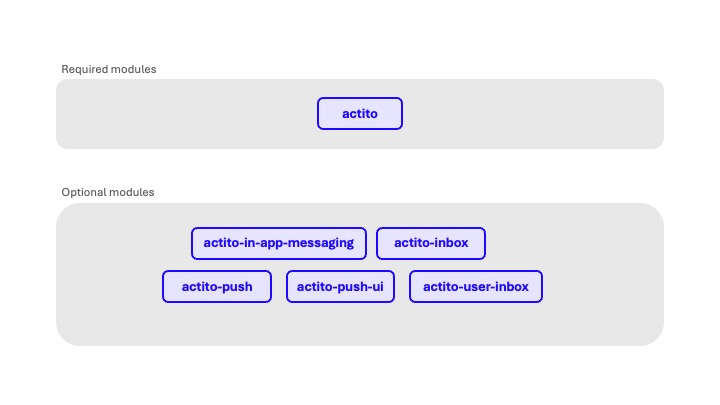
This modular structure allows developers to include only the components relevant to their use case, ensuring optimal performance and reduced application size. Install the plugins you need:
# Required
cordova plugin add cordova-plugin-actito

# Optional modules
cordova plugin add cordova-plugin-actito-assets
cordova plugin add cordova-plugin-actito-in-app-messaging
cordova plugin add cordova-plugin-actito-inbox
cordova plugin add cordova-plugin-actito-push
cordova plugin add cordova-plugin-actito-push-ui
cordova plugin add cordova-plugin-actito-user-inbox
Setting up the configuration file
To establish a connection between your application and Actito, you must download a configuration file for each environment your application supports. In most cases, this includes both development and production configurations.
Once downloaded, place each file in the following locations within your project:
- Android
- iOS
In order to place the downloaded Android configuration file in the appropriate location, you can add the following to your config.xml.
<platform name="android">
  <resource-file src="actito-services.json" target="app/actito-services.json" />
</platform>
For your reference, here's what this file should look like:
{
  "project_info": {
    "application_id": "{{ YOUR APPLICATION ID }}",
    "application_key": "{{ YOUR APPLICATION KEY }}",
    "application_secret": "{{ YOUR APPLICATION SECRET }}"
  }
}
In order to place the downloaded iOS configuration file in the appropriate location, you can add the following to your config.xml:
<platform name="ios">
  <resource-file src="ActitoServices.plist" target="ActitoServices.plist" />
</platform>
For your reference, here's what this file should look like:
<?xml version="1.0" encoding="UTF-8"?>
<!DOCTYPE plist PUBLIC "-//Apple//DTD PLIST 1.0//EN" "http://www.apple.com/DTDs/PropertyList-1.0.dtd">
<plist version="1.0">
<dict>
    <key>APPLICATION_ID</key>
    <string>{{ YOUR APPLICATION ID }}</string>
    <key>APPLICATION_KEY</key>
    <string>{{ YOUR APPLICATION KEY }}</string>
    <key>APPLICATION_SECRET</key>
    <string>{{ YOUR APPLICATION SECRET }}</string>
</dict>
</plist>
Be sure to replace the files with the ones for the appropriate environment each time you switch configurations.
- Development configuration: make sure to include configuration file pointing to Actito PREPROD environment
- Production configuration: make sure to include configuration file pointing to Actito PROD environment
Launching Actito
Before using any Actito features, the SDK must be initialized by invoking the launch() method. This process ensures that the Actito SDK is fully set up and ready to operate. Most SDK functionality will remain unavailable until this initialization occurs.
It is recommended to invoke the launch within when the main application component initialises its state:
async function onDeviceReady() {
  // Cordova is now initialized.

  // Launch Actito! 🚀
  await Actito.launch();
}
Launching the SDK automatically registers the device with Actito. If your application requires user consent before collecting or registering device information, you may delay the initial launch until consent is granted.
Otherwise, ensure that launch() is called during the application's initialization phase to avoid missing important updates — particularly when the app is created in the background.
Verify your setup
- Run the app on Android and iOS (device or emulator/simulator).
- Check the console/Logcat for any Actito errors during startup — a clean startup means initialization succeeded.
- Open your Actito app dashboard: the device should appear registered within a minute of launching the app.
If nothing shows up, see troubleshooting.
Unlaunching Actito
If your application needs to permanently disable Actito functionality, you can invoke the unlaunch() method. This method completely removes all Actito-related functionality and deletes any previously registered device information, both locally and remotely.
While this action is generally discouraged, it may be required in certain cases — such as when a user requests permanent account deletion or data removal — to ensure compliance with privacy and data protection regulations.
await Actito.unlaunch()
Once unlaunch() is invoked, all associated data is permanently destroyed and cannot be recovered. Any subsequent calls to Actito APIs will fail until the SDK is reinitialized using the launch() method.
Why two environments?
Applications commonly operate across two primary environments: development and production.
- The development environment is used for feature implementation, debugging, and internal testing.
- The production environment represents the live deployment accessed by end users.
It is strongly recommended to assign distinct bundle identifiers to each environment (for example, com.example.app.dev for development and com.example.app for production). Maintaining separate identifiers allows both versions to coexist on the same device, ensures each build connects to the appropriate Actito environment, and prevents data or configuration conflicts.
In most configurations, the development environment corresponds to the debug build type on Android and the Debug build configuration on iOS, and the production environment to release/Release respectively.
Establishing a clear separation between environments minimizes the risk of deploying builds that target incorrect services.
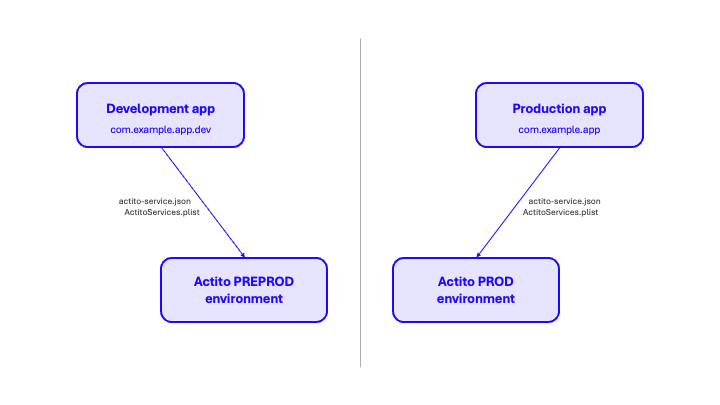
Please ensure you configure distinct environments, as this separation is required for remote notifications to function correctly.