Getting started
Using the Android library will allow you to quickly implement remote notifications, use actionable analytics or display content in your app.
- An Actito app
- The latest version of Android Studio
- Two separate environments configured in your Actito app: development and production (why?)
Quick start
Three steps and you're done. Details for each step are below if you get stuck.
1. Add the SDK to your app/build.gradle:
dependencies {
    def actito_version = 'REPLACE_WITH_LATEST_VERSION'
    implementation "com.actito:actito:$actito_version"

    // Optional modules — add only what you need
    implementation "com.actito:actito-push:$actito_version"
    implementation "com.actito:actito-push-ui:$actito_version"
    implementation "com.actito:actito-inbox:$actito_version"
    implementation "com.actito:actito-user-inbox:$actito_version"
    implementation "com.actito:actito-in-app-messaging:$actito_version"
}
2. Download your actito-services.json from your Actito app (one per environment) and drop it in:
app/actito-services.json(production)app/src/debug/actito-services.json(development)
Then apply the Actito Services Gradle plugin so the SDK can read it — root build.gradle.kts:
plugins {
  id("com.android.application") version "8.13.0" apply false
  id("com.actito.gradle.actito-services") version "1.0.0" apply false
}
— and app-level build.gradle.kts:
plugins {
  id("com.android.application")
  id("com.actito.gradle.actito-services")
}
3. Launch Actito in your Application class:
class CustomApplication : Application() {
    private val applicationScope = MainScope()

    override fun onCreate() {
        super.onCreate()

        applicationScope.launch {
            try {
                // Launch Actito! 🚀
                Actito.launch()
            } catch (e: Exception) {
                // Something went wrong ...
            }
        }
    }
}
That's it — your app now registers itself with Actito automatically. Jump to verifying your setup, or read on for the details behind each step.
Step 1 — Add the SDK
The Actito SDK is modular: the core actito module is required, everything else is optional.
| Module | Purpose |
|---|---|
actito | Core module — always required |
actito-push | Remote notifications |
actito-push-ui | Managed notification UI (recommended if using actito-push) |
actito-inbox / actito-user-inbox | Build a custom inbox UI |
actito-in-app-messaging | Automatically display in-app messages |
Add only the modules your app actually uses — this keeps the app size down.
Step 2 — Add your configuration file
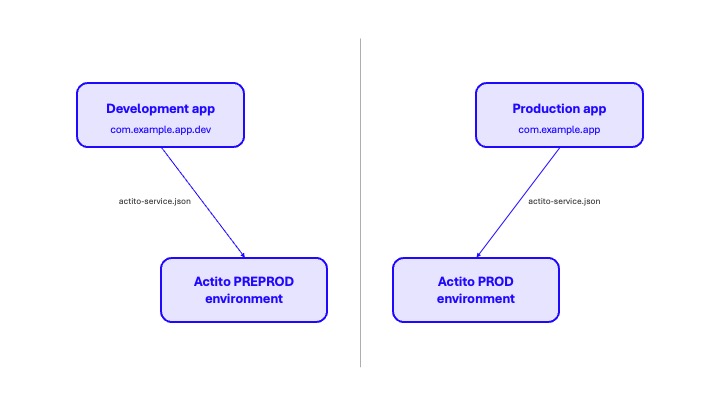
The actito-services.json file connects your app to your Actito environment. You need one per environment (development and production) — see why below.
Placing the files as shown above lets Android's build variants pick the right one automatically: debug builds get the development config, release builds get the production one.
Prefer configuring the SDK directly in code instead of a JSON file? See the customization guide.
Step 3 — Launch Actito
Actito.launch() initializes the SDK and registers the device. Most SDK functionality is unavailable until this call completes, so call it as early as possible — ideally in your Application.onCreate().
If your app requires consent before collecting device data, delay this call until consent is granted — otherwise call it unconditionally at startup to avoid missing updates while the app is in the background.
Verify your setup
- Run the app on a device or emulator with Google Play services.
- Check Logcat for any Actito errors during startup — a clean startup means initialization succeeded.
- Open your Actito app dashboard: the device should appear registered within a minute of launching the app.
If nothing shows up, see troubleshooting.
Unlaunching Actito
If your application needs to permanently disable Actito functionality, you can invoke the unlaunch() method. This removes all Actito-related functionality and deletes any previously registered device information, both locally and remotely — for example when a user requests account or data deletion.
Actito.unlaunch()
Once unlaunch() is invoked, all associated data is permanently destroyed and cannot be recovered. Any subsequent calls to Actito APIs will fail until the SDK is reinitialized using the launch() method.
Why two environments?
Applications commonly operate across two primary environments: development and production.
- The development environment is used for feature implementation, debugging, and internal testing.
- The production environment represents the live deployment accessed by end users.
It is strongly recommended to assign distinct bundle identifiers to each environment (for example, com.example.app.dev for development and com.example.app for production). Maintaining separate identifiers allows both versions to coexist on the same device, ensures each build connects to the appropriate Actito environment, and prevents data or configuration conflicts.
In most configurations, the development environment corresponds to the debug build type, and the production environment to the release build type.