Setting up APNs
Before you can send push notifications in iOS, you must create and configure an Apple Push Notification service (APNs) authentication key. This process is completed through the Apple Developer Portal. This guide provides step-by-step instructions on how to create an App ID and generate an APNs authentication key.
Creating an App ID
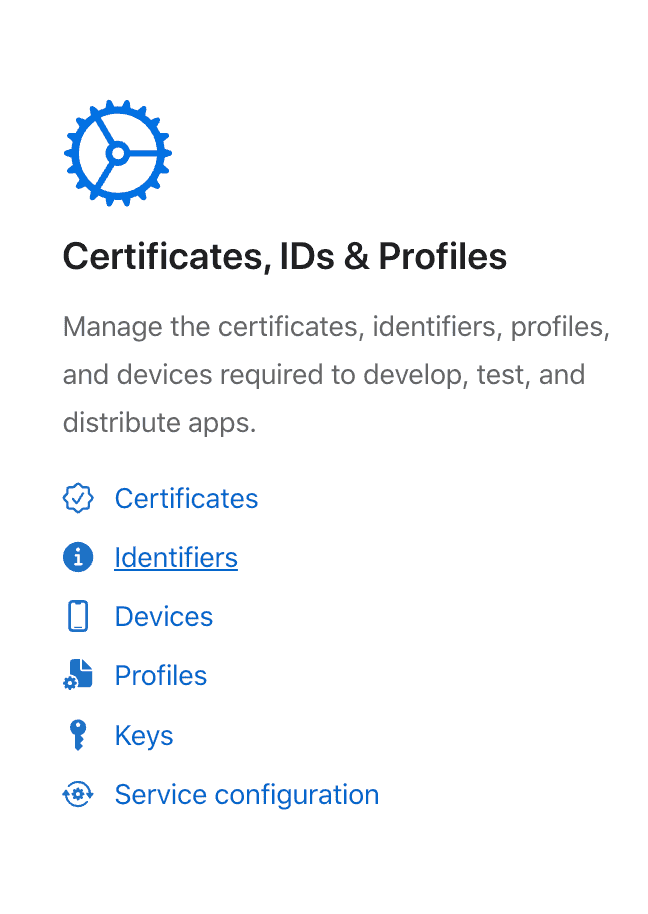
Sign in to the Apple Developer Portal. From the Program Resources section, in the Certificates, IDs & Profiles menu, click Identifiers:
On the Identifiers page, click the plus (+) icon to create a new App ID:

Select App IDs:

And click Continue:

Provide a name and bundle identifier for you app: The bundle identifier should follow the reverse-DNS format, for example: com.example.app

Select the capabilities your app will use. Ensure that Push Notifications is enabled:
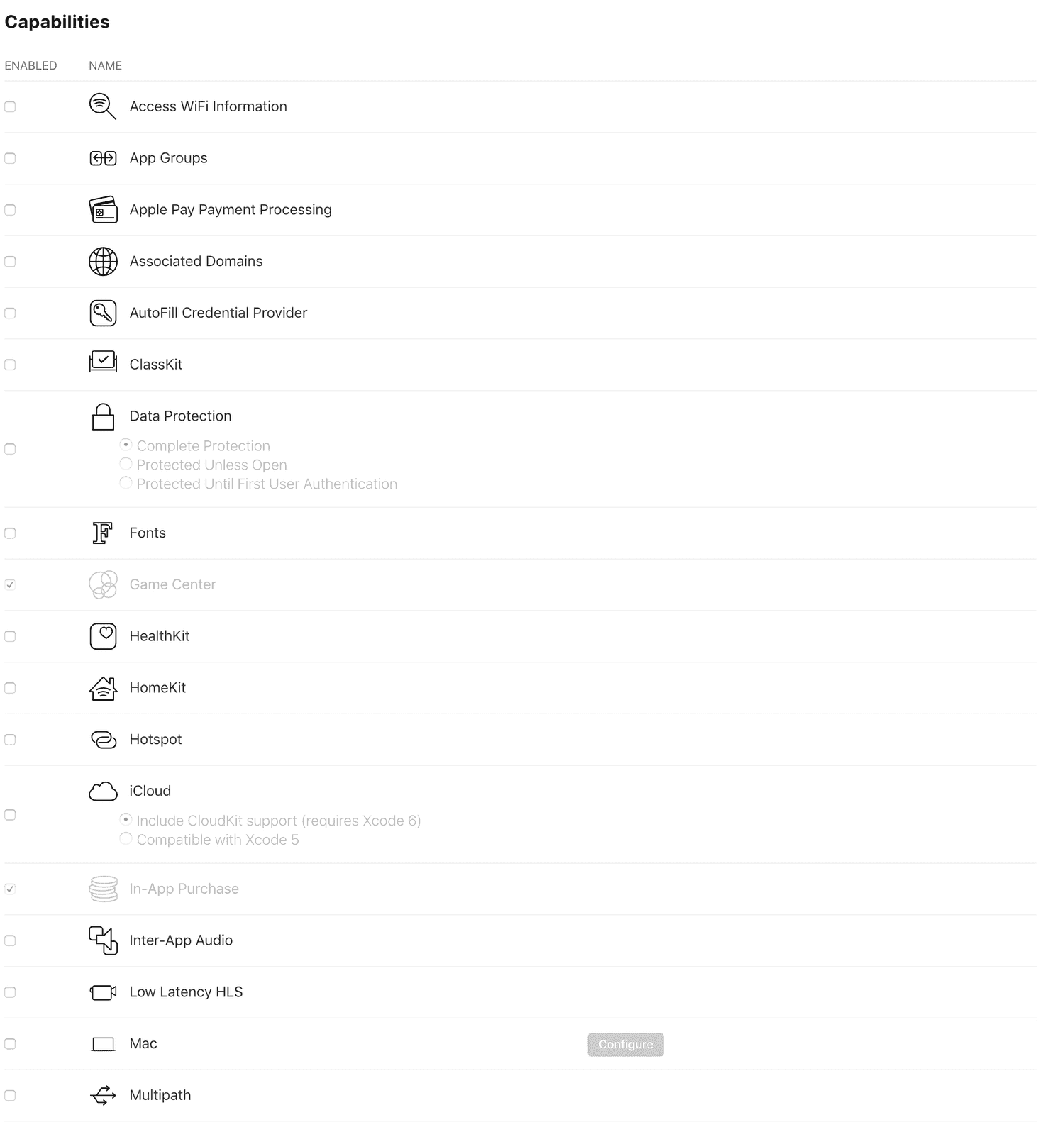
Once all required capabilities are selected, click Continue:
Review your configuration details on the confirmation screen. If everything is correct, click Register to finalize the App ID creation:

Your newly registered App ID will now appear in the list of identifiers.
Generate an APNs Authentication Key
Apple introduced APNs authentication keys as part of the modern APNs service in 2016. An authentication key simplifies credential management by allowing a single key to be used across multiple apps within your Apple Developer account. These keys do not expire. However, if a key is revoked, you must update all associated apps and providers with the new key.
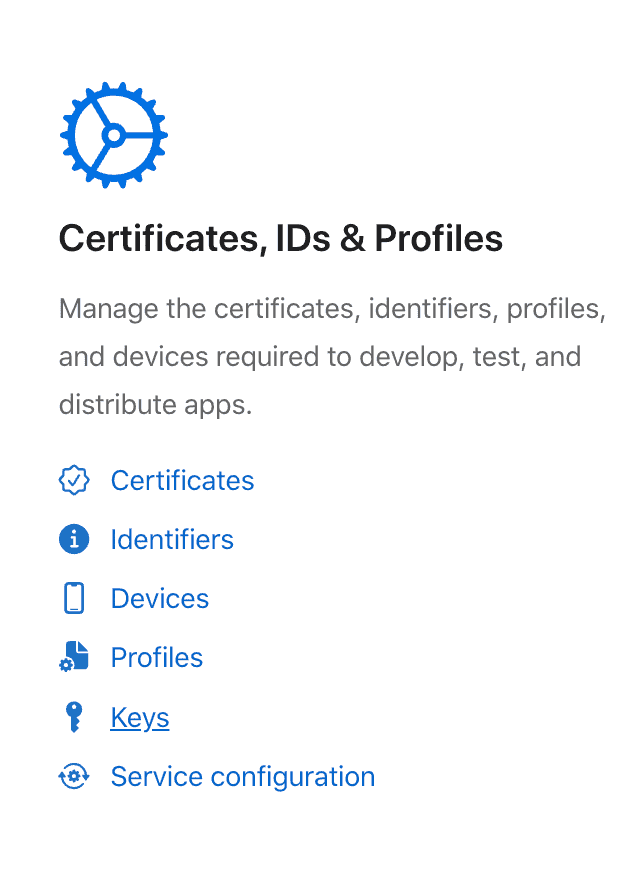
In the Apple Developer Portal, select Keys in the Certificates, IDs & Profiles menu of the Program Resources section:
Click the plus (+) icon to register a new key:

Provide a name for the key, then select Apple Push Notification service (APNs) as the enabled service:
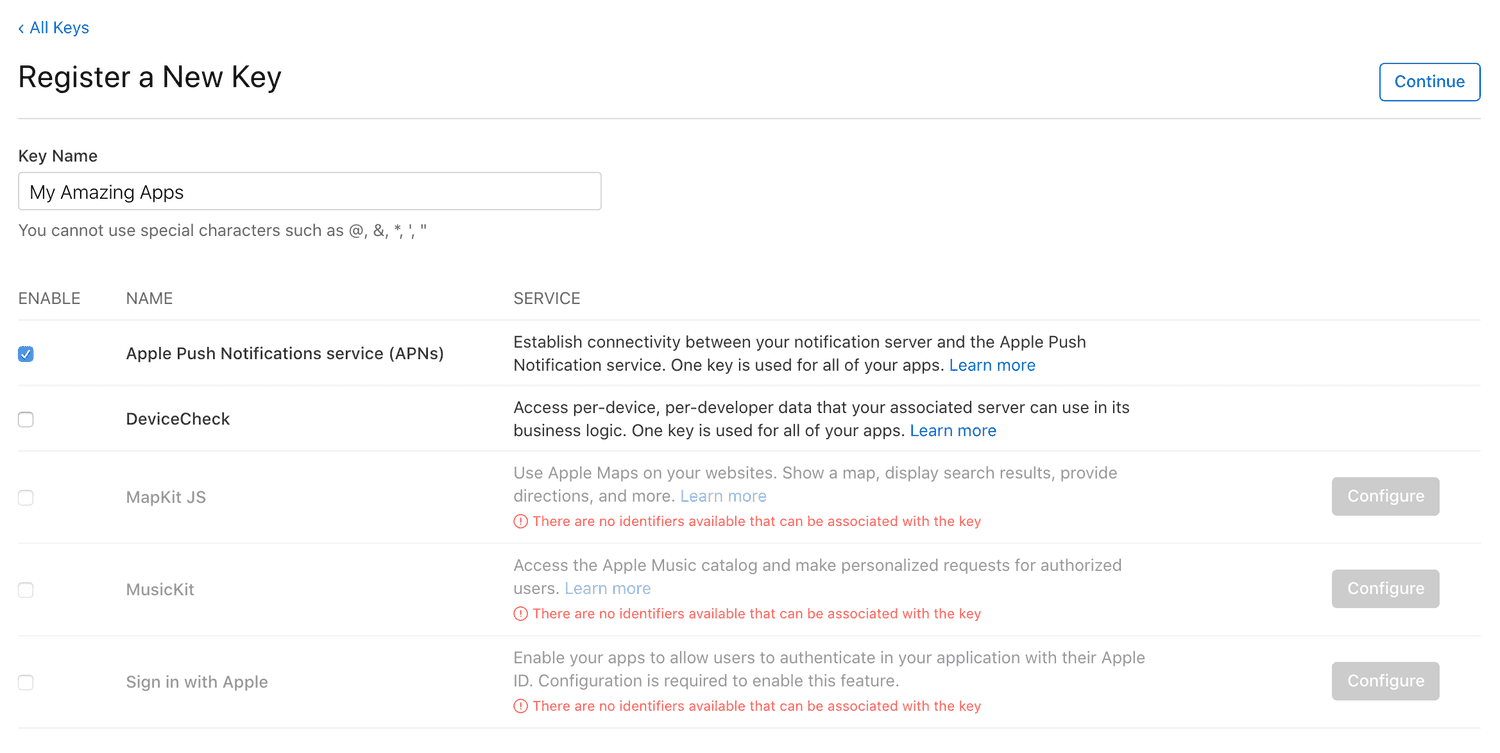
Click Continue to proceed:
Review the key details and click Register to finalize creation:
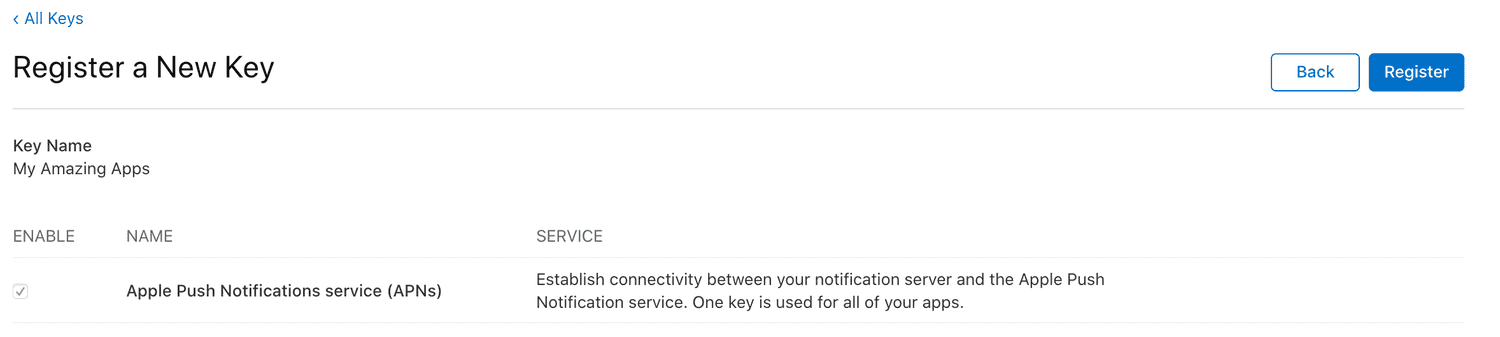
Once the key has been registered, download the .p8 file:
This file can only be downloaded once. Make sure to store it securely.
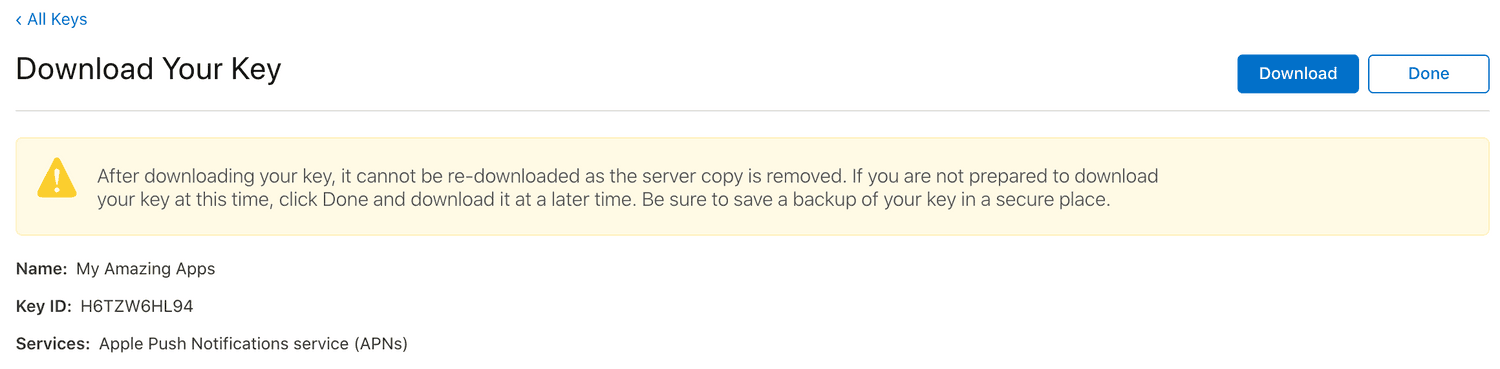
You now have a valid APNs authentication key (.p8 file) ready to be uploaded to Actito. Uploading this key enables Actito to send push notifications to your iOS application.