FTP(S)
What is an FTP(S)?
FTP (File Transfer Protocol) is a standard network protocol for transferring files between clients and servers over TCP/IP networks. It uses two channels: a command channel (port 21) for control commands and a separate data channel for file transfers.
FTPS (FTP Secure) adds TLS/SSL encryption to FTP, securing both command and data channels during transmission. It comes in two forms: explicit FTPS, where encryption is requested via AUTH TLS, and implicit FTPS, which encrypts from connection start. Note that FTPS is distinct from SFTP, which runs over SSH rather than extending FTP.
Actito allows you to connect an existing FTP(S) server to exchange files automatically. Once the FTP(S) integration is configured, you can:
- Automatically import customer data into Actito
- Export segments and campaign results to external systems
- Automate file exchanges on a scheduled basis
When using your own SFTP server, you are responsible for managing uploaded files, including file cleanup.
Server hosting options
If the FTP(S) server is hosted on your side, you can directly provide all the required connection details (host, port, credentials, etc.) to create the integration. Only the exchange of whitelisted IP addresses with Actito will be required to finalize the setup.
If the FTP(S) server is hosted by Actito, you must first request the server creation from the Actito team. Once the server is created and the required connection details are provided, you can finalize the setup in this screen.
Actito-hosted FTPS servers are designed for file transfer, not long-term storage. Uploaded files are kept for a maximum of 5 days. After that, files are automatically deleted. We recommend deleting files immediately after collection as a best practice.
Network configuration
If you use an Actito FTPS server, ask your network provider to configure the following:
- Outbound traffic: Allow output traffic from your network to our IPs on destination TCP port 21 (FTP authentication channel)
- Data channel: Allow traffic from your network to our IPs on TCP port range 31000–32000 (data channel)
FTP Server IPs
| Environment | Hostname | IP Address |
|---|---|---|
| Production (ENV-0, ENV-1, ENV-3) | ftp02.actito.be | 80.169.111.136 |
| Preproduction | testftp.citobi.be | 185.26.247.11 |
Configure an FTP(S) integration
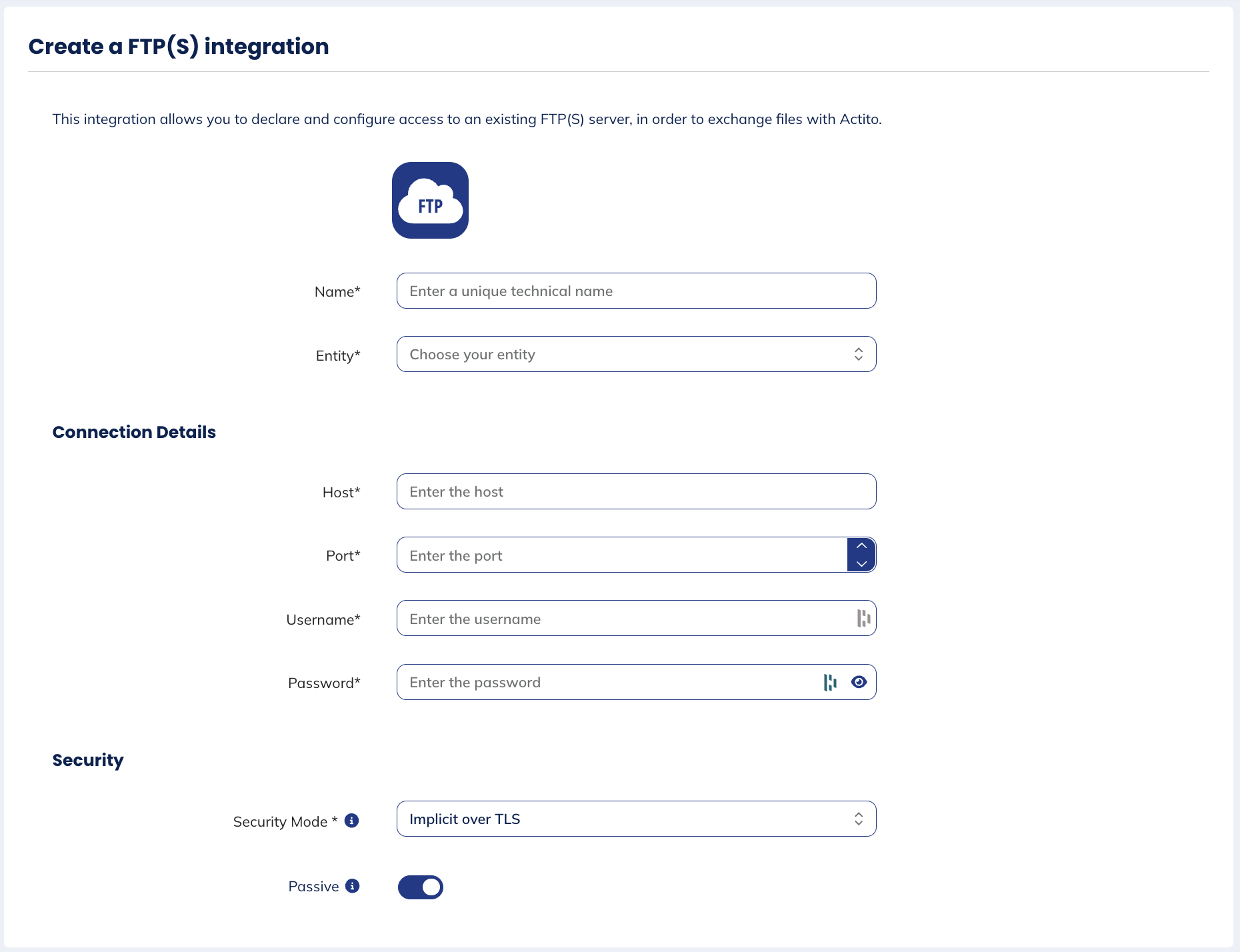
The integration allows you to declare and configure access to an existing FTP(S) server, in order to exchange files with Actito.
General
You will have to define:
- the unique technical name
- the entity to which the FTP(S) will be linked
Connection details
You will have to enter the information about:
- the host: the server address where the FTP server is located
- the port: the network port used to establish the connection
- the username: the account identifier used to authenticate with the FTPS server
- the password: the credential used to verify the user's identity
Security
You will have to define:
- the security mode: defines the encryption method for FTP connections. Explicit TLS (FTPES) starts as plain FTP and upgrades to encrypted. Implicit TLS (FTPS) requires encryption from the start.
- the tranfer mode: determines how the data connection is established between the client and the server. Active mode lets the server initiate the data connection, while passive mode lets the client initiate it (recommended when behind firewalls or NAT).
Overview of the FTP(S)
Overview
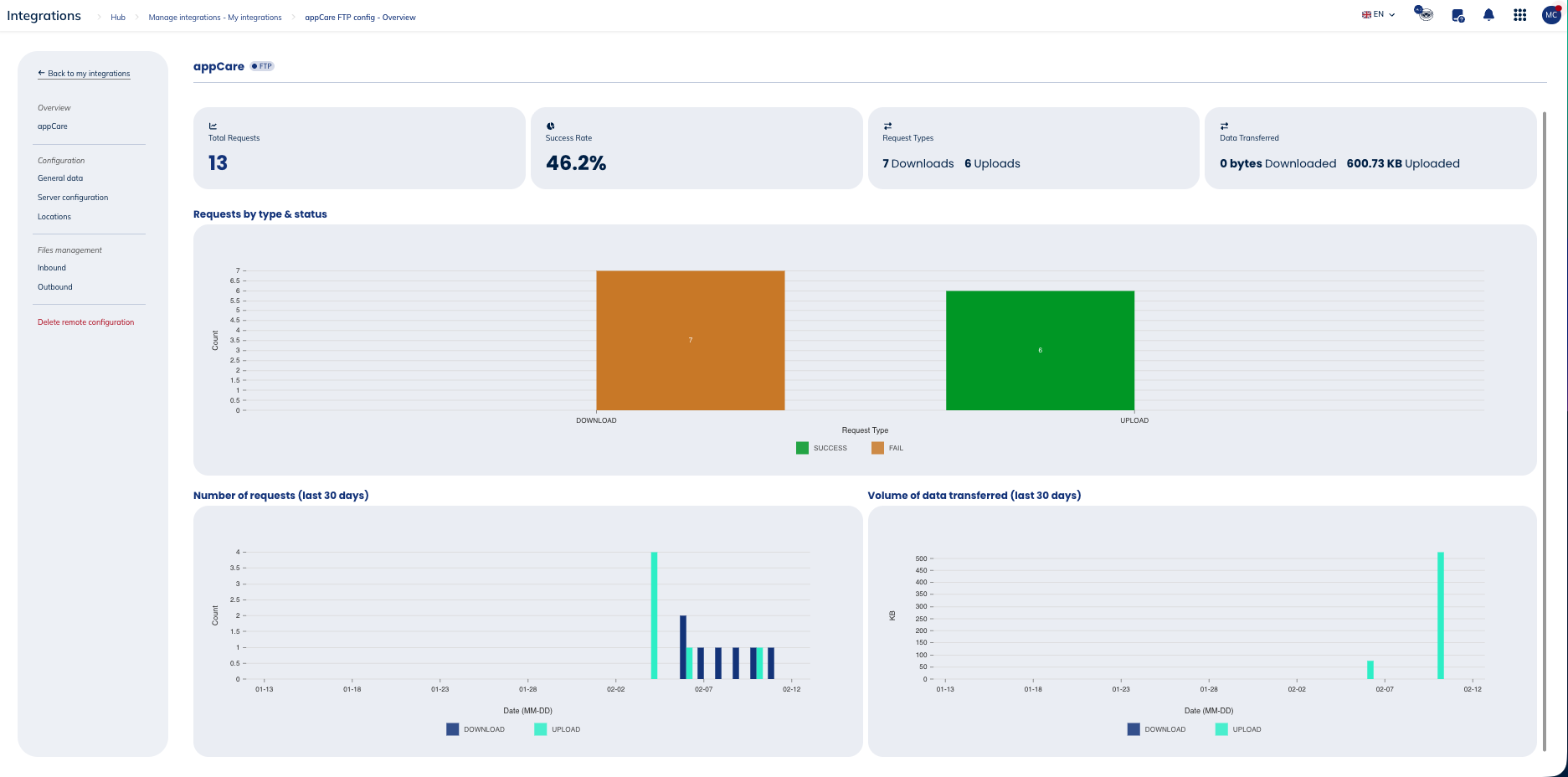
In the general information, you will see the following metrics:
- Total requests
- Success rate
- Request types (downloads & uploads)
- Data transferred (downloads & uploads)
You'll also see three types of graphs:
- Requests by types (download & upload) and status (success or fail)
- Number of requests during the last 30 days
- Volume of data transferred during the last 30 days
Configuration
General data
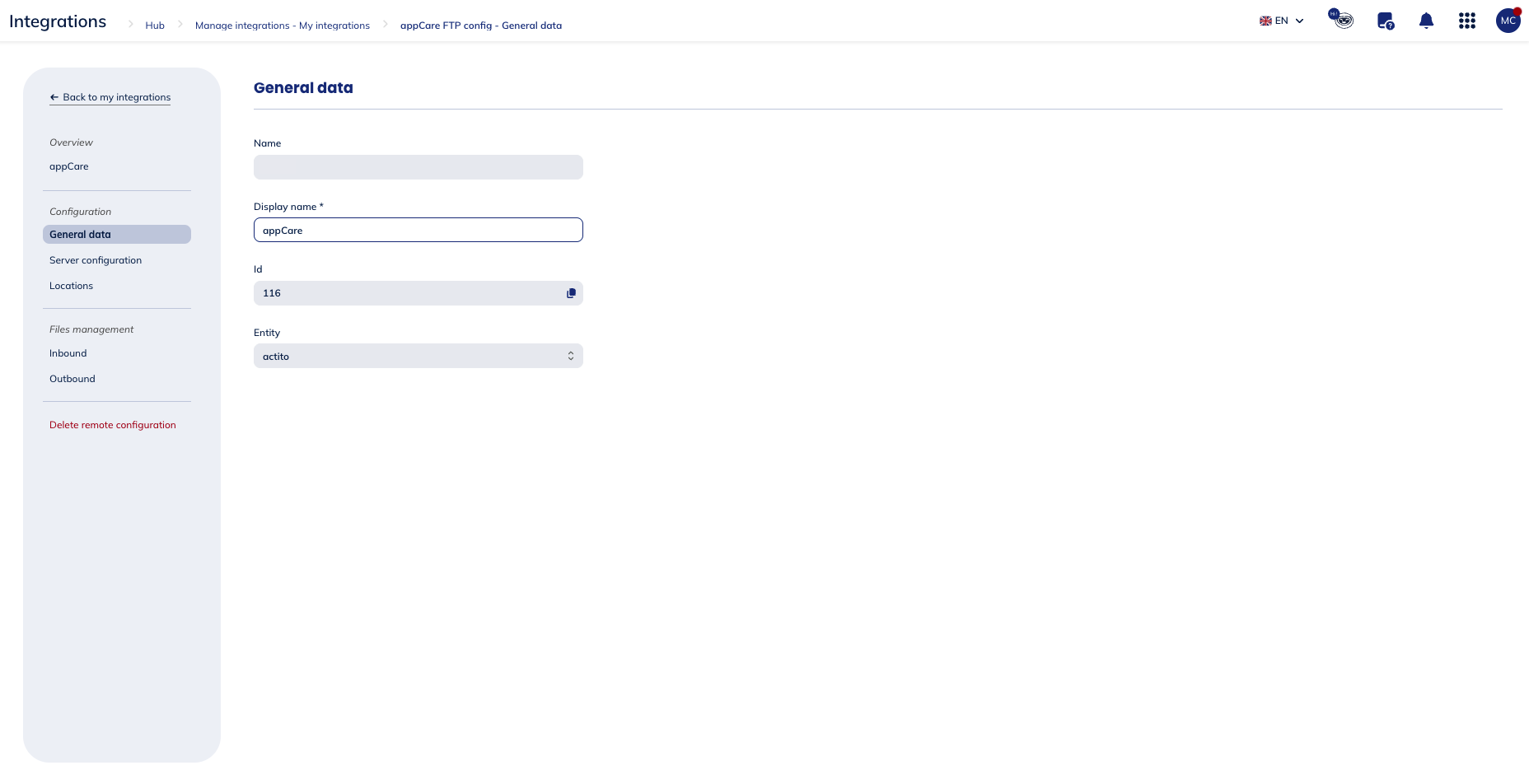
The general data shows you the following information about your FTP(S):
- the technical name
- the display name, that you can modify
- the id
- the entity to which it is linked
Server configuration
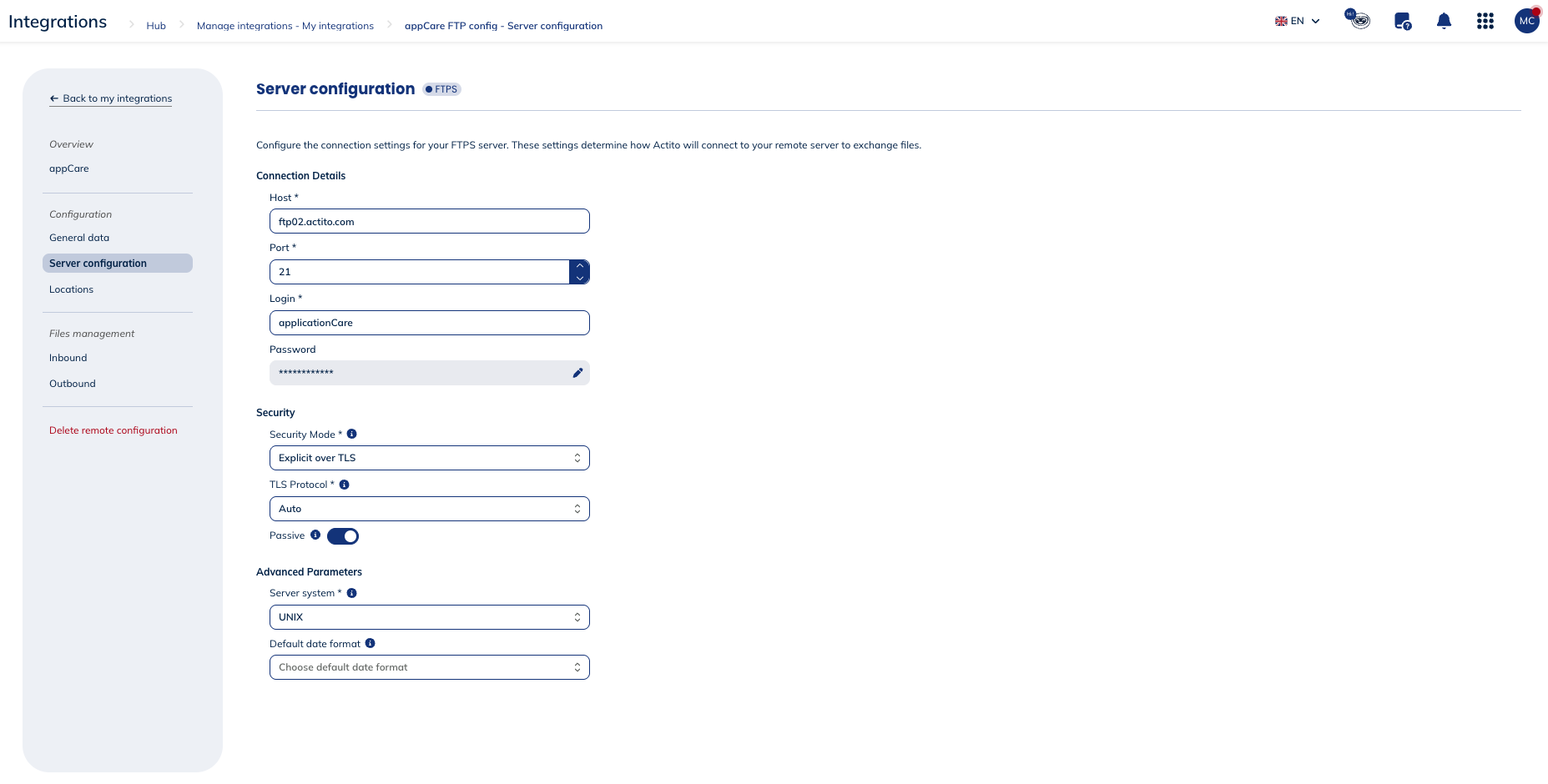
The server configuration enable you to view and modify the connection details and security information you have filled in when configuring the FTP(S) information. It also allows you to define some advanced parameters.
The advanced parameters you can define are the following:
- the server system: specifies the operating system (UNIX or WINDOWS) of the FTP server. This helps Actito interpret file listings and path formats.
- the default date format: specifies the date format used by the FTP server for file timestamps. This influences how Actito parses file dates (last modified date, creation date, etc.) when listing files on the server.
Locations
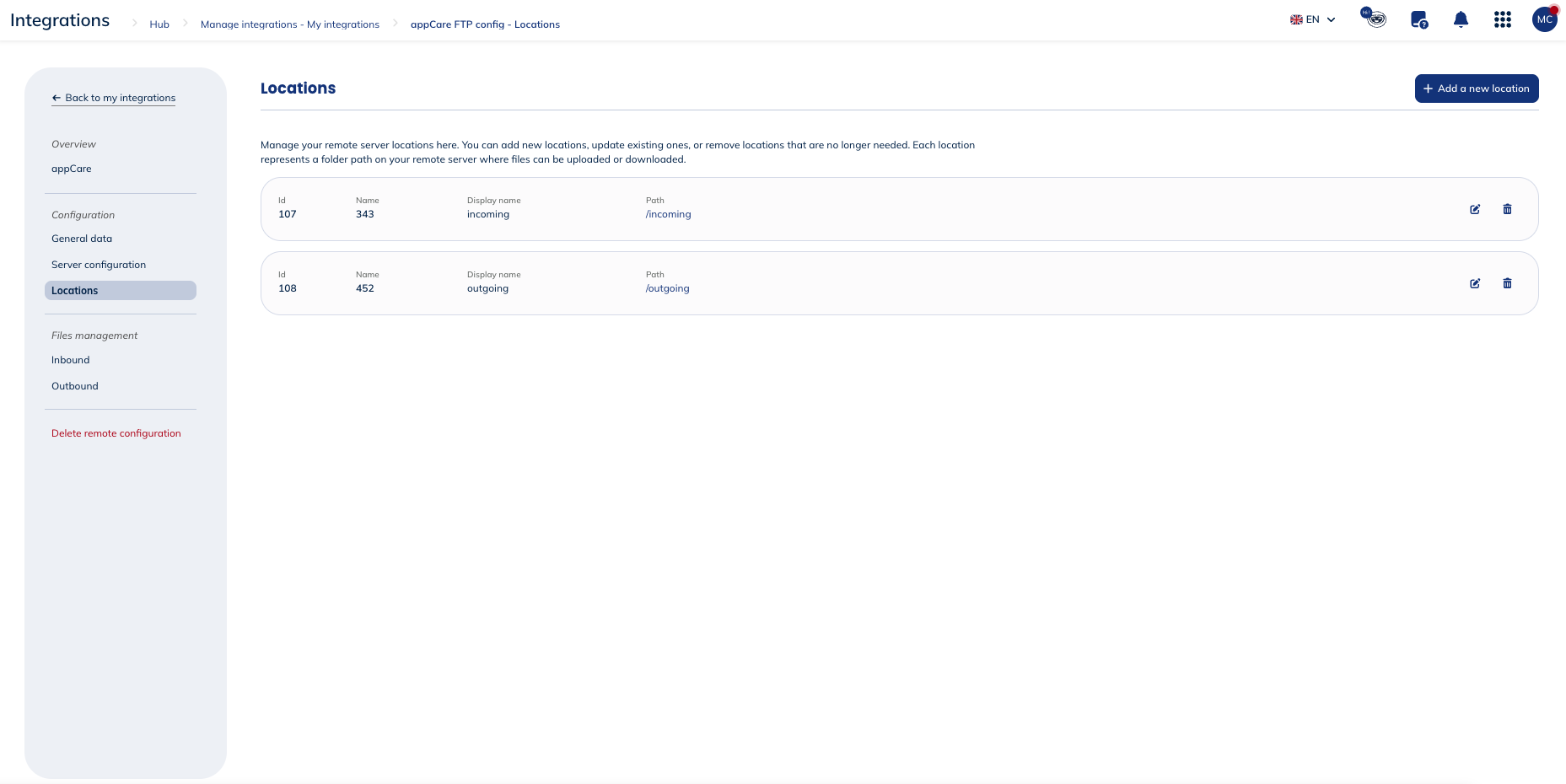
You can manage your remote server locations here. You can:
- add new locations,
- update existing ones,
- or remove locations that are no longer needed.
Each location represents a folder path on your remote server where files can be uploaded or downloaded.
Files management
Inbound
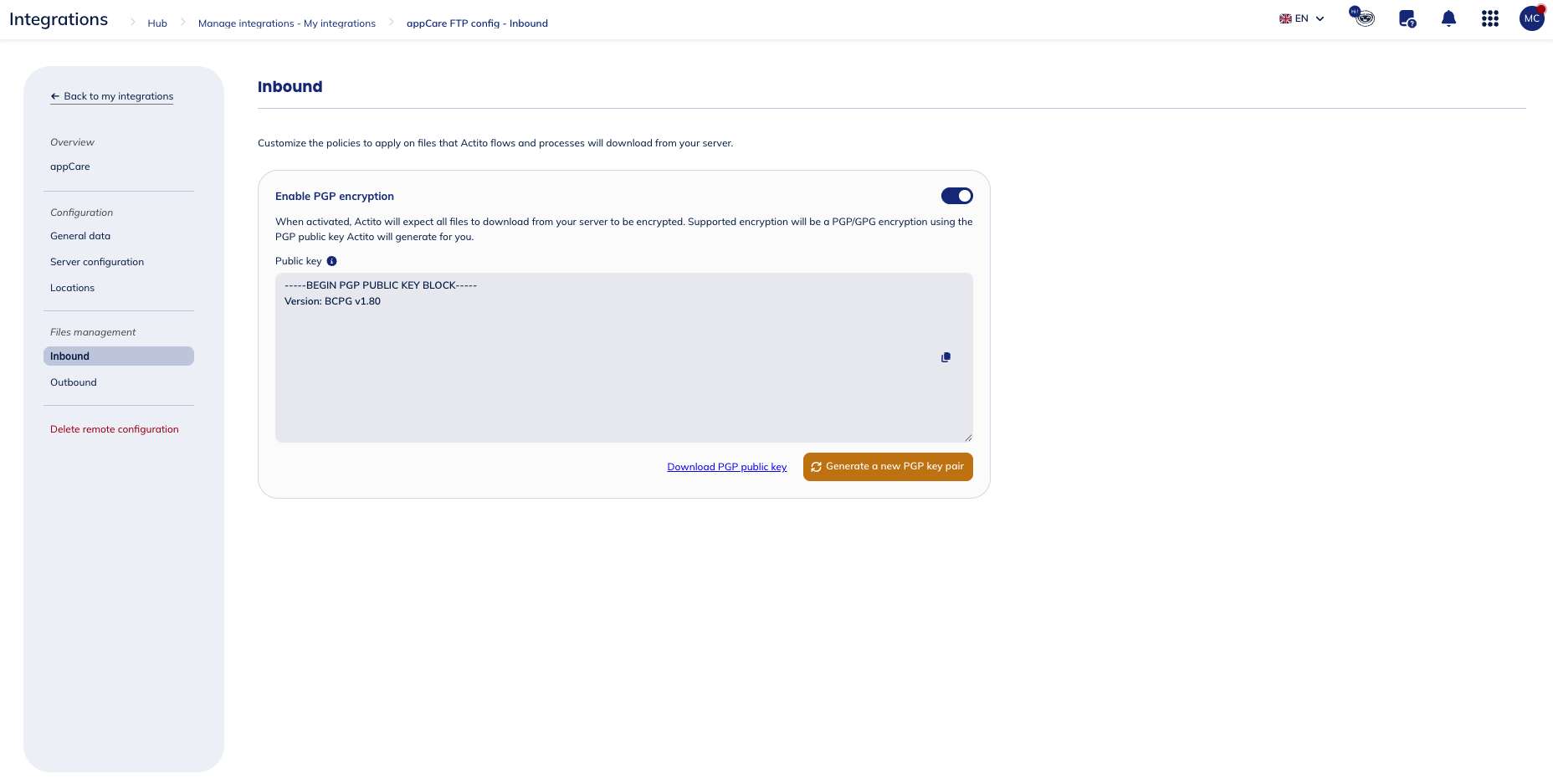
Here, you can customize the policies applied to files that Actito downloads from your server, including enabling PGP encryption.
PGP (Pretty Good Privacy) is an encryption standard used to secure data through a combination of symmetric and asymmetric cryptography. It works using a key pair: a public key, which can be shared openly and is used to encrypt data, and a private key, which is kept secret and is used to decrypt it. Data encrypted with a public key can only be decrypted by the corresponding private key.
PGP is commonly used to encrypt files before transfer, ensuring that even if intercepted, the data cannot be read without the recipient's private key. It can also be used to sign data, verifying the sender's identity and ensuring the data has not been tampered with.
When activated, all files downloaded from your server must be PGP/GPG encrypted. Actito will generate a PGP public key for you to use when encrypting your files.
You'll have to download the PGP public key and use it to encrypt your files before uploading them to the remote server. Actito will use its corresponding private key to decript the files before processing them.
You also have the possibility to generate a new PGP key pair if necessary.
Outbound
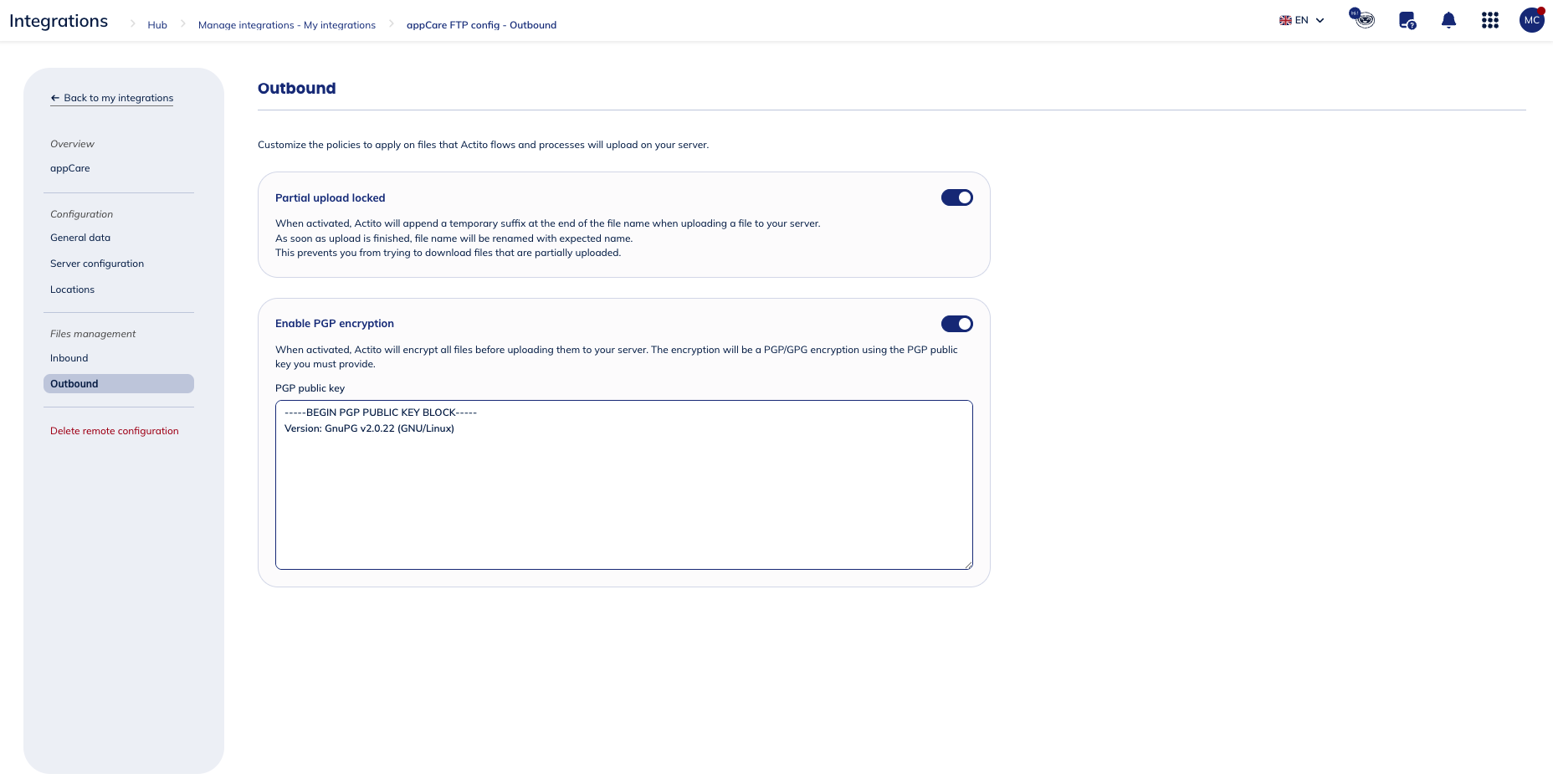
Here, you can customize the policies applied to files Actito uploads to your server, including partial upload locking and PGP encryption.
When enabled, partial upload locking causes Actito to append a temporary suffix to the filename while the upload is in progress. Once the upload completes, the file is renamed to its expected name. This ensures you never attempt to download a file before it is fully uploaded.
You can aslo enable PGP encryption. When activated, Actito will encrypt all files before uploading them to your server. The encryption will be a PGP/GPG encryption using the PGP public key you must provide.
PGP (Pretty Good Privacy) is an encryption standard used to secure data through a combination of symmetric and asymmetric cryptography. It works using a key pair: a public key, which can be shared openly and is used to encrypt data, and a private key, which is kept secret and is used to decrypt it. Data encrypted with a public key can only be decrypted by the corresponding private key.
PGP is commonly used to encrypt files before transfer, ensuring that even if intercepted, the data cannot be read without the recipient's private key. It can also be used to sign data, verifying the sender's identity and ensuring the data has not been tampered with.
You'll have to upload the PGP public key file that Actito will use to encrypt files before uploading them to your server.
Delete remote configuration
You have the possibility to delete the remote configuration on Actito's side.