Setting up Google Maps
If you intend to send notifications that use the map capabilities, you must enable the Google Maps API and configure your app with an API key. This guide walks you through enabling Google Maps SDK in the Google Cloud Console and adding the required configuration to your Android project.
Enable Google Maps API
Sign in to the Google Cloud Console and select the project associated with you app:

You will be directed to the project's Welcome page. In the Quick Access section, click APIs & Services:
In the left-hand menu, select Library:

From the API library, locate and select Maps SDK for Android:

On the API overview page, click Enable to activate the Maps SDK for your project:
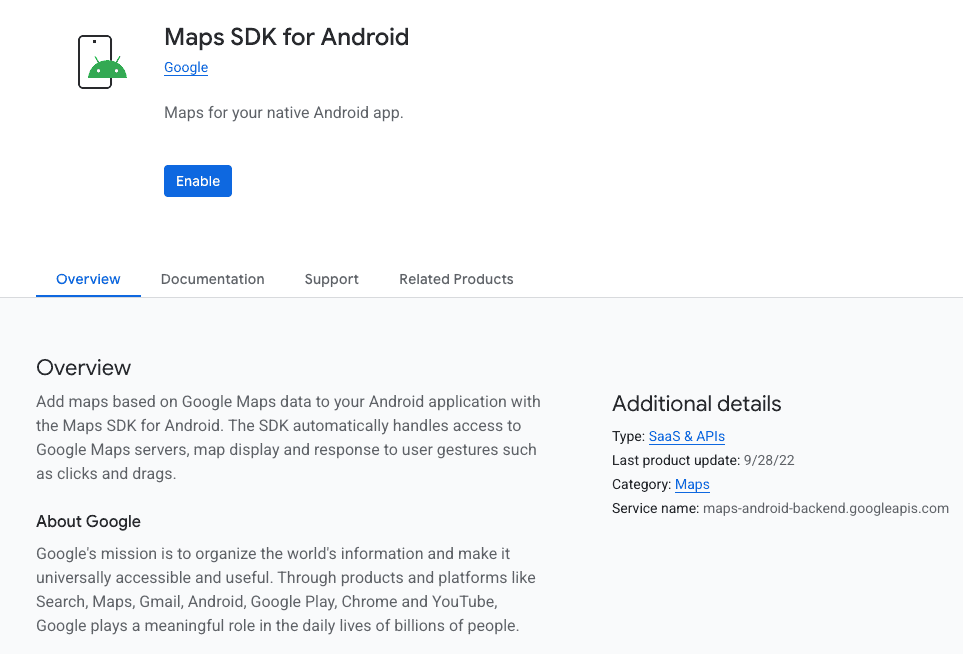
Once enabled, your project will have access to the Google Maps API. You can now proceed to create an API key for use in your application.
Create API key
Return to the APIs & Services page and select Credentials from the left-hand menu:

Click Create Credentials, then select API key from the dropdown.

A new API key will be generated and displayed in a pop-up window.
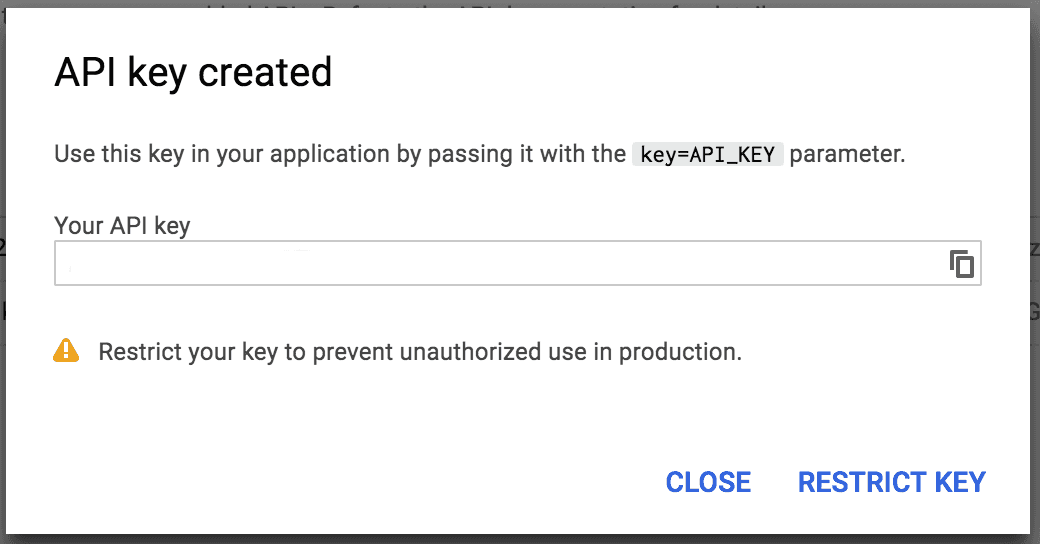
In production, you might want to restrict the access of this key to your app, but we will not cover this setup in this document.
Adding the key to your app
Once your API key is created, add it to your app in your config.xml:
<platform name="android">
    <config-file target="AndroidManifest.xml" parent="/manifest/application">
        <meta-data android:name="com.google.android.geo.API_KEY" android:value="YOUR_API_KEY_HERE" />
    </config-file>
</platform>